How to Install F-Droid Without Rooting Your Android Device
Gain access to a universe of privacy-respecting software by adding F-Droid to your stock Android device without complex hacks or root access.

There is a persistent misconception among Android users that exploring the world of free and open-source software (FOSS) requires unlocking bootloaders, flashing custom ROMs, or acquiring superuser permissions through root access. While those practices certainly offer deeper system control, they are absolute barriers for the average user who simply wants an alternative to the Google Play Store. You do not need to be a hacker to reclaim your digital privacy. You do not need to void your warranty to install a clean, tracker-free map client or a lightweight note-taking app.
The F-Droid repository serves as the primary gateway to this ecosystem. It is a catalog of apps that respect your freedom and privacy, all available at zero cost. In 2026, installing the F-Droid client on a stock device—be it a Samsung Galaxy S25, a Pixel 9, or a Xiaomi 14—is a straightforward process that takes roughly five minutes. This guide focuses exclusively on the official, non-root method of adding F-Droid as a trusted source, ensuring you maintain your device's integrity while expanding your software library.
Why Add F-Droid to Your Stock Device?
The standard Google Play Store hosts millions of applications, but convenience often comes at the cost of data harvesting. Many popular apps include proprietary tracking libraries, serving ads and collecting telemetry even when you aren't actively using them. Switching to F-Droid is not just about saving money; it is a deliberate choice to support software development that prioritizes user agency over profit margins.
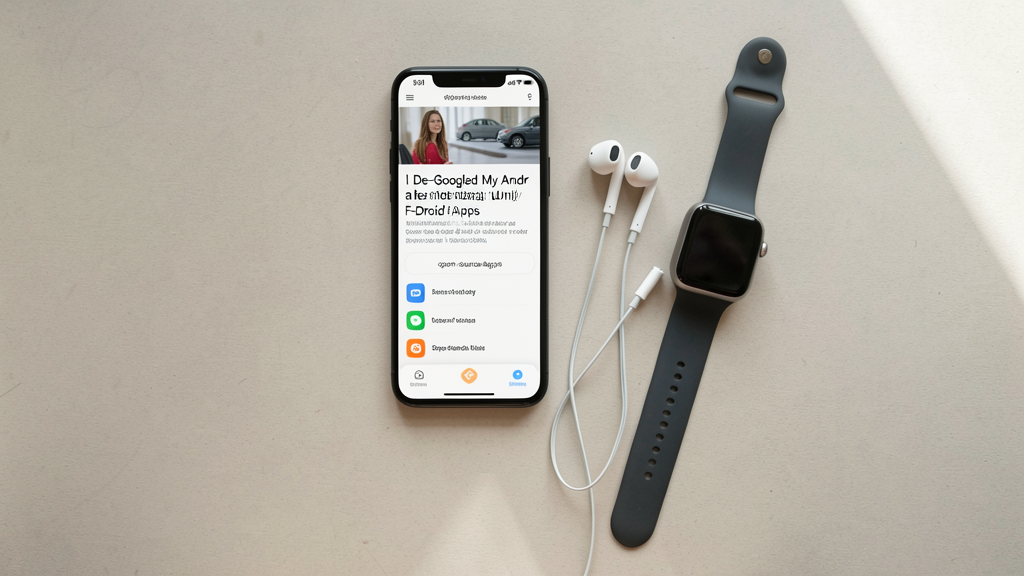
Many users are surprised to learn that a completely stock Android experience can coexist with FOSS alternatives. I spent a week de-Googling my primary phone using only apps from this repository, and the transition was seamless for daily tasks like browsing, messaging, and productivity. You can replace Chrome with a privacy-focused browser, ditch your paid navigation subscription for an OpenStreetMap-based client, and find tools that don't require an internet connection to function.
The barrier to entry is mental, not technical. By installing F-Droid, you are essentially adding a second "app store" to your app drawer. You can still access the Play Store for your banking or corporate apps, but you now have a separate, curated space for software that does not treat you as the product.
Phase One: Configuring Security Permissions
Before you can download the client, you must authorize your Android operating system to accept applications from sources other than the official marketplace. Google has tightened security over the years, moving from a global toggle to a per-app permission system.
- Open your device's Settings app.
- Scroll down and select Security & privacy (on some skins, this might just be Security or Biometrics and security).
- Look for the Install unknown apps or Unknown sources menu.
- You will see a list of installed apps. You must select the browser you intend to use for the download (e.g., Chrome, Firefox, or Edge).
- Toggle the switch labeled Allow from this source to the "On" position.
Modern Android versions require you to grant this permission specifically to the browser doing the downloading. This is a security feature; if your browser is compromised, it could theoretically install malicious apps, but limiting the permission to just one app reduces the attack surface.
Phase Two: Sourcing the APK File
With the permission in place, the next step is acquiring the installation file (APK) for the F-Droid client itself. It is crucial to download this from the official project website to ensure you are getting the verified, unmodified software.
- Open your authorized web browser.
- Navigate to
f-droid.orgvia the address bar. - Look for the large button or link that says Download. This will take you to the download page specifically hosting the APK.
- Tap on the link for the latest version (as of mid-2026, this is typically version 1.17 or higher, usually around 8.5 MB in size).
- Once the file downloads, tap on the F-Droid.apk notification or open it from your "Downloads" folder.
At this stage, your device may display a standard installation prompt indicating that the browser is attempting to install an application. Since we enabled the permission in Phase One, you will see a screen detailing the permissions the app requests (network access, storage access, etc.).
Dealing with Google Play Protect Warnings
Even with the correct settings enabled, Android's built-in malware scanner, Google Play Protect, often flags sideloaded apps as "harmful" or "unknown." This is a false positive triggered simply because the app was not downloaded from the Play Store. F-Droid is a safe, reputable project used by millions, but Google's defensive algorithms are aggressive.
- If you see a pop-up warning that "Google Play Protect found a harmful app" or "Blocked installation," look for the More info or Details link at the bottom of the dialog.
- Tap Install anyway (unsafe) or Ignore risk.
- Confirm the installation by tapping Install on the subsequent prompt.
It can be alarming to see a "harmful" warning, but in this specific context, it is a warning of origin, not content. F-Droid does not use Google's proprietary services, which makes it appear "unknown" to Play Protect's scanners. Once installed, you can optionally whitelist F-Droid in Play Protect settings so it doesn't flag updates in the future, though updating F-Droid through its own interface is usually the preferred method.
Is F-Droid Actually Safe for Daily Use?
Safety in the open-source world operates differently than in the proprietary ecosystem. When you install an app from the Play Store, you are trusting that Google has vetted the developer (a process that occasionally fails). When you install from F-Droid, you are trusting the community auditors who review the source code.
However, Does Open Source Mean Secure? The Truth About Unaudited FOSS Apps is a question every user should ask. While the code is open, not every app undergoes a rigorous security audit by professionals. The "many eyes" theory depends on people actually looking. For most utility apps—calculators, note pads, simple clients—the risk is minimal. For more sensitive tools, like password managers or networking utilities, you should check if the app is in the "Archive" or actively maintained and check the popularity metrics within the repository.
Unlike the Play Store, F-Droid does not execute apps on your device to see if they crash or misbehave before listing them. It builds them directly from source code. This ensures the binary matches the code, but it means you must exercise a small degree of personal judgment. Stick to apps with high ratings and active version histories.
The Reality of Open-Source Updates
Once F-Droid is running, you will notice a distinct difference in how updates are handled. You cannot simply "enable auto-update" for everything and forget about it, as you might with Play Store apps. F-Droid checks for updates only when you open the app and refresh the repository.
Furthermore, there is a latency issue. Because F-Droid builds apps from source, they cannot simply repackage the binary provided by a developer on GitHub. If a developer fixes a critical bug, the F-Droid build bots must pull that change, compile it, sign it, and release it. This process can take anywhere from a few hours to several weeks depending on the app.
This delay is the trade-off for verification. You are trading immediate gratification for cryptographic certainty that the app you are running contains exactly the code the developer published. For most users, this is an acceptable compromise, but it can be frustrating if you are waiting for a specific feature that has already launched on the Google Play version of a dual-listed app.
Setting Up the Guardian Project Repository
By default, F-Droid includes its main repository, which contains a vast array of software. However, to get the most out of your new installation, specifically regarding privacy tools, you should add the Guardian Project Repository. They maintain specialized tools for anonymity, censorship circumvention, and secure communication.
- Open the F-Droid app.
- Tap the Settings gear icon (usually in the top right corner).
- Select Repositories.
- Tap the + button or Add New Repository.
- In the address bar, enter the Guardian Project URL:
https://guardianproject.info/fdroid/repo. - Tap OK. The app will fetch the fingerprint and verify it.
- Toggle the switch for the newly added repository to "Enabled."
Adding this repository gives you access to tools like Orbot (Tor for Android) and Orfox, enhancing the privacy capabilities of your device immediately. This step is optional for casual users, but essential for anyone treating this installation as a serious move toward digital sovereignty.
The Trade-Off: What You Lose When You Switch
Installing F-Droid is not a magic wand that solves all software problems. There are significant limitations you will encounter. The most glaring is the lack of Google Cloud Messaging (GCM) or Firebase Cloud Messaging (FCM) support. FOSS apps do not use these proprietary push notification services.
Consequently, many apps on F-Droid will not send you notifications in real-time. An email client or messaging app might only check for new messages when you manually open it or when it runs on a background sync interval (which you may need to configure manually in the app's settings). This saves battery and data, but it requires a shift in behavior. You stop reacting to the "ding" of your phone and start checking your communication tools on your own schedule.
Additionally, some apps have a steeper learning curve. FOSS software often prioritizes functionality over aesthetics. You might find apps that look like they belong in 2014. While there are many beautiful exceptions, the design philosophy in the open-source community often values efficiency and customizability over the polished, gestural animations found in modern commercial software.
Starting Your Journey with a New Browser
Once F-Droid is installed and your repositories are synced, the first app I recommend downloading is a privacy-focused browser to replace your default. A great starting point is Fennec F-Droid, the Firefox-based browser stripped of proprietary telemetry.
If you are wondering Why Use Fennec F-Droid Instead of the Official Firefox Mobile Browser?, the answer lies in the permissions and background data. Fennec allows you to install extensions directly from the add-on store, including uBlock Origin, which provides a vastly superior ad-blocking experience than Chrome's built-in filter. It gives you a taste of what the web looks like without the surveillance economy following every click.
Installing F-Droid without root is the first step in decoupling your digital life from the walled gardens of Big Tech. It empowers you to choose software based on ethics and transparency rather than whatever is promoted at the top of a search ranking. The process requires you to take a few minutes to adjust your security settings and bypass default warnings, but the result is a phone that feels more like a tool you own, and less like a platform you rent.
By following these steps, you have transformed your standard Android device into a dual-booting citizen of both the corporate web and the open internet. From here, you can explore tools that protect your metadata and respect your rights, all while keeping your device's warranty and root status completely intact.